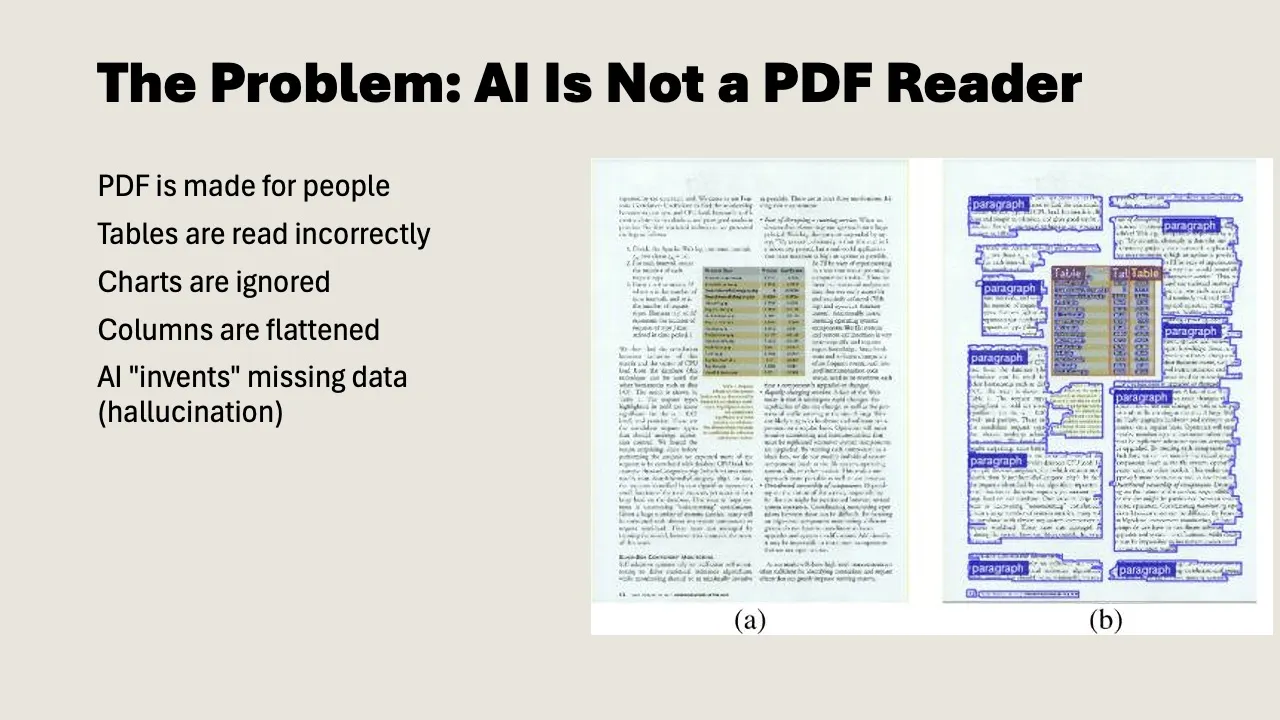
It looks fine. But AI reads it wrong.
You upload a campaign report as a PDF to Gemini or ChatGPT. Nice tables, neat columns, logo in the corner. You ask for a summary of the quarterly figures. The answer sounds convincing, the sentences flow, the format is right. But the numbers are wrong.
That’s what makes PDFs and AI such a dangerous combination. The model doesn’t give you an error message. It does its best with what it gets, and when it can’t read something properly, it fills in the gaps itself. That’s called hallucination, and it happens more often than you’d think.
PDF was made for eyes, not for language models
The PDF format dates back to the early 1990s. Adobe developed it so documents would look identical everywhere: first on paper, later on screen. The U.S. Internal Revenue Service was one of the first major users: forms that looked exactly the same for every recipient, without printing and mailing. Since then, PDF has become the standard for anyone who needs a reliable document: lawyers, governments, publishers, pension funds.
But under the hood, a PDF isn’t text. It’s a set of instructions for drawing text on a page: character coordinates, font choices, positions in pixels.
A language model doesn’t read pixels. It reads text. To do anything with a PDF, the model first has to extract the text via OCR (optical character recognition). And that’s where things go wrong.
Where things go wrong in practice
Tables
This is the biggest problem. A PDF table looks clear to us: rows, columns, numbers neatly aligned. But for a language model, those are loose text elements without structure. Columns bleed into each other, rows shift, a number that belongs to “Q3” gets linked to “Q2.”
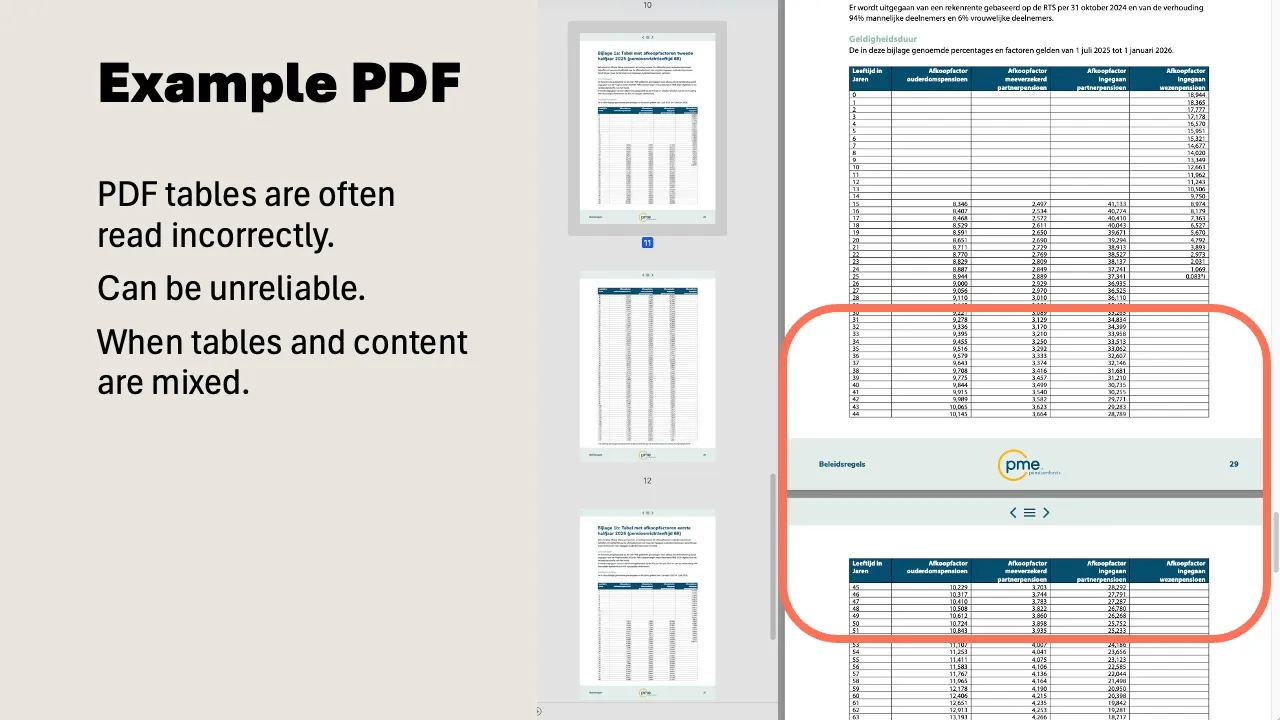
In a recent course, we showed a pension document with commutation figures by age group. Five columns, dozens of rows. Clear to us. The language model mixed up the columns and returned amounts that belonged to the wrong age group. Nobody catches that right away unless you double-check the numbers.
Columns and layout
Many reports and academic papers use two columns. OCR reads left to right, combining text from the left and right columns into one unreadable mess.
The same problem shows up with page breaks. A table that continues from page 10 to page 11 is one unit to us. For the model, they’re two separate fragments. The header disappears, the context breaks off.
Visual elements
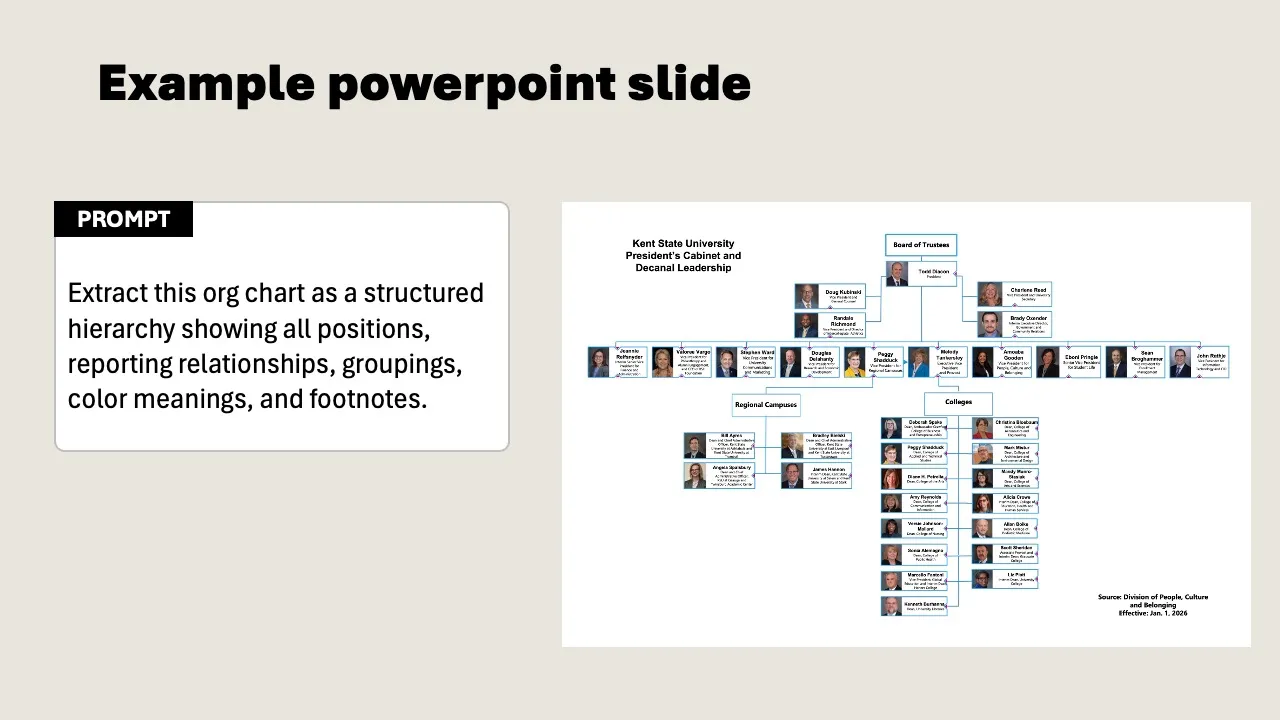
A bar chart in a PDF is clear to us at a glance. A language model can do little with it. It doesn’t see the axes, reads the labels incorrectly, and misses the proportions. Org charts and flowcharts are even harder: the model sees loose text boxes but doesn’t understand how they connect.
And then there are scans. Scanned documents with poor resolution, skewed text, or handwritten notes in the margins. The model does its best, but the error rate is high.
Why this won’t be solved anytime soon
You’d expect this to be a solved problem by now. Language models can write code, produce mathematical proofs, and translate across multiple languages. But reading PDFs? They still struggle with that.
The core problem goes deeper than bad OCR. OCR recognizes text but doesn’t understand the editorial structure of a document. A heading, a footnote, a caption under a chart: the difference is obvious to us. For a model, they’re pieces of text on a page, without hierarchy. For flowing prose, that works fine. But as soon as tables, forms, or multiple columns come into play, the structure falls apart.
Work is being done on this. A new generation of specialized models tackles PDFs in multiple steps: first segmenting the document into regions (headings, tables, images, footnotes), then sending each region to a separate model trained specifically on that type of element. The approach is comparable to how self-driving cars work: first segment the environment (car, pedestrian, road marking), then make decisions per object. Charts get converted to spreadsheets, handwritten notes get deciphered, and tables keep their columns.
Why are companies only now investing seriously in this? Because AI developers discovered that PDFs are an enormous, untapped source of high-quality data. Government reports, textbooks, scientific papers, patents: it’s all in PDF. Researchers estimate that trillions of tokens of training data are locked up in PDFs. That makes the problem suddenly commercially interesting.
Results are getting better. But it’s still a probabilistic system: the model guesses what the structure is. In 98% of cases, it gets it right. That last 2% is precisely the table with your quarterly figures, the form with handwritten notes, the scan that’s slightly skewed. And then there are the edge cases nobody expects: PDFs that contain other PDFs, legal documents with passages that are sometimes underlined and sometimes struck through, faxes of medical forms that doctors have scribbled over.
PDF as a format isn’t going away, either. Search interest rises steadily each year, without exception. There simply isn’t another format that does what PDF does: a document that looks identical for every recipient, regardless of device, browser, or era. A PDF from 1995 opens today exactly as intended. Governments, lawyers, publishers, pension funds: they all depend on it. The volume of PDFs keeps growing. The problem isn’t getting smaller.
What you can do about it
The solution is simpler than you’d think. You don’t have to wait for better models. You need to convert your core documents.
Use the source file
Do you have the original Word document, the Google Sheet, or the Google Slides? Use that. Always. The source file contains the structure that a PDF loses. Only fall back on the PDF when you don’t have a source file.
Convert to plain text
Copy the content of your document to a Google Doc or a markdown file. Headings, subheadings, bullet points, tables in text format. No formatting, no logos, no page numbers. It’s the content that matters.
For Google Docs: set the layout to “pageless” (File > Page setup). Without page breaks, it works as a continuous document, which is exactly what a language model needs.
Let AI convert it
Have a slide deck of 50 pages? Upload it to Gemini and ask: “Convert this to structured text in markdown. Also describe what you see in visual elements.” The model extracts the text and creates descriptions of charts and photos. You still need to review the result, but it saves hours of manual work.
Handle tables separately
Tables are the most vulnerable part. Copy them from Excel or Sheets as plain text, or export as CSV. A table in CSV format is read flawlessly by a language model. The same table in a PDF is unpredictable.
Work within the Microsoft ecosystem
Using Microsoft 365 with Copilot? Then you largely bypass the PDF problem. Copilot reads Word, Excel, and PowerPoint files directly via Microsoft Graph, including the original structure. No OCR, no guesswork. That’s one of the reasons why working from source files is so much more reliable than working from a PDF export.
When a PDF is perfectly fine
Not everything needs to be converted. PDFs work well enough for:
- Flowing text without tables (a policy document, a narrative report)
- Brainstorming and rough summaries (where exact numbers aren’t critical)
- Documents you consult once (not as part of your permanent knowledge base)
The rule of thumb: if you wouldn’t need to double-check the numbers in the answer, a PDF is fine. If amounts, percentages, or client names are involved, convert it.
It takes an afternoon, it saves you months
Most teams we work with have 10 to 15 core documents: strategy plans, rates, campaign blueprints, target audience profiles. You convert those to plain text once. After that, you use them for everything you do with AI, for example as part of your AI knowledge base.
That conversion takes an afternoon. The alternative is crossing your fingers every time, hoping the model reads the PDF correctly. That’s not a workflow. That’s wishful thinking.