The problem: a webpage isn’t really text
You copy a page from a company website, paste it into Copilot, and ask for a summary. The answer starts with “Skip to main content” and ends with the cookie policy. Half of what you pasted was navigation, footer, chat widget, and ad copy.
A language model doesn’t see a page. It sees a wall of text with no distinction between content and interface. The less noise you feed in, the better the answer. Here are two ways to extract just the content.
Option 1: Immersive Reader in Microsoft Edge
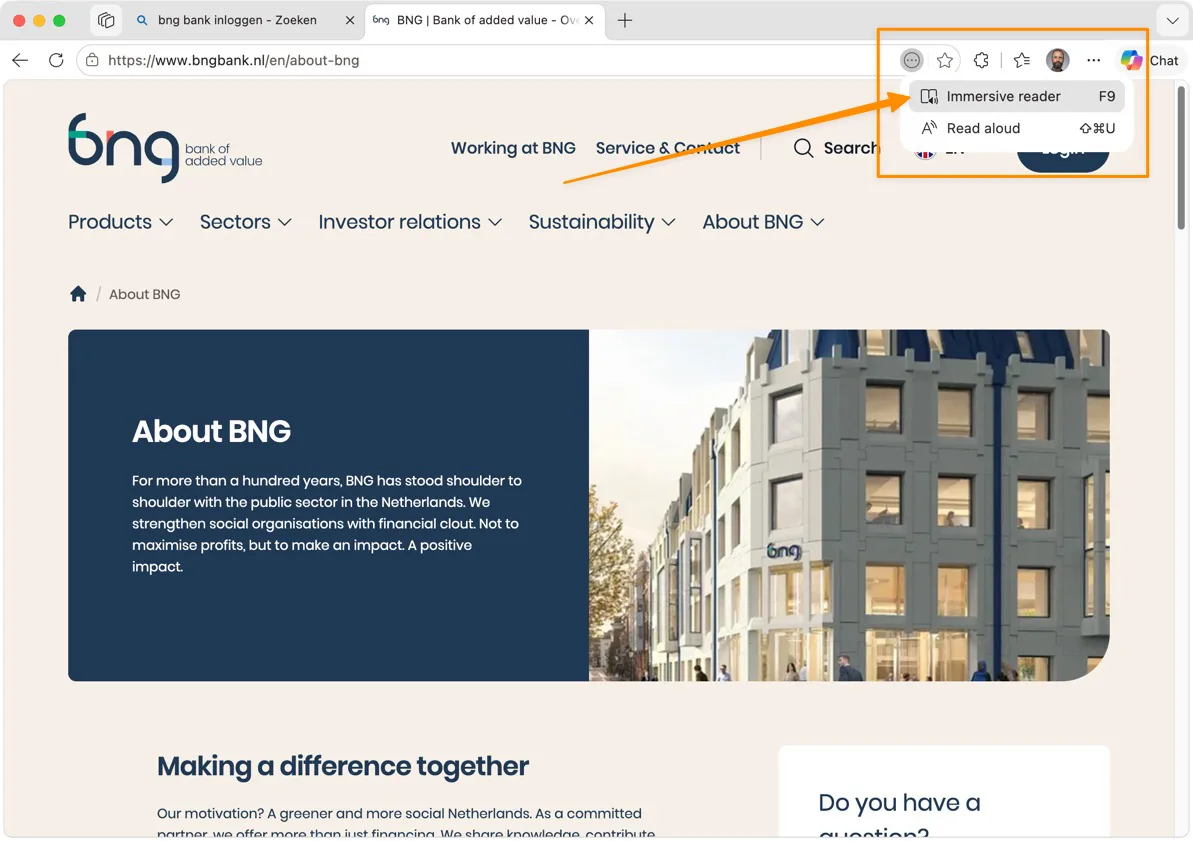
Edge has a button that strips a page down to its readable content. No menus, no banners, no ads. Just the text.
- Open the page in Edge
- Click the book icon in the address bar (or press F9)
- Choose “Immersive reader”
- Select all (Cmd+A or Ctrl+A), copy, paste into your AI
What you get back is the page without formatting or interface elements. Works on most news pages, knowledge bases, and articles. On heavy web apps (dashboards, forms) the button sometimes doesn’t appear, because there’s no clear “reading content” for Edge to extract.
Option 2: defuddle.md in front of the URL
Sometimes you don’t want to click buttons, and sometimes you’re not using Edge. There’s a trick that works in any browser: put https://defuddle.md/ in front of the URL.
So instead of:
https://www.bngbank.nl/en/about-bngYou go to:
https://defuddle.md/https://www.bngbank.nl/en/about-bng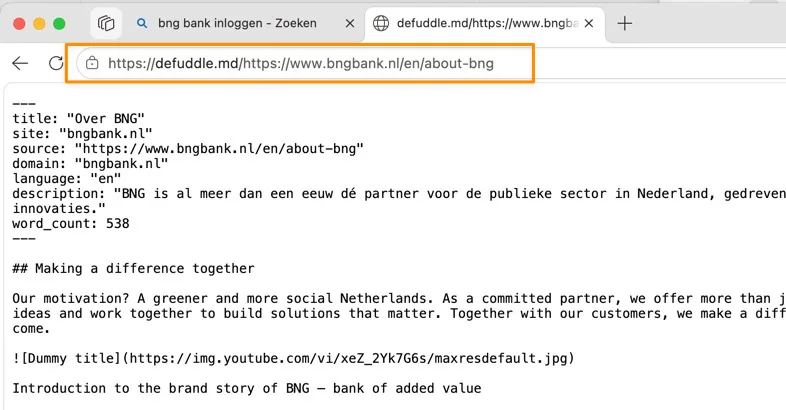
What comes back is markdown: the text with headings, lists, and links intact, without the rest of the page. At the top you get useful metadata (title, source, language, word count) that you can copy along into your AI.
Two alternatives that do the same thing:
https://markdown.new/[url]https://r.jina.ai/[url]
Which one you pick is taste. Defuddle gives slightly cleaner output, Jina sometimes handles JavaScript-heavy pages better.
When to use which
| Situation | Method |
|---|---|
| One page, quick summary | Immersive Reader |
| Behind a login or paywall | Immersive Reader (you’re already signed in) |
| No Edge at hand | defuddle.md in front of the URL |
| Page needs JavaScript to load | r.jina.ai in front of the URL |
| You want to save the text as markdown | defuddle.md (save the file) |
Why this matters
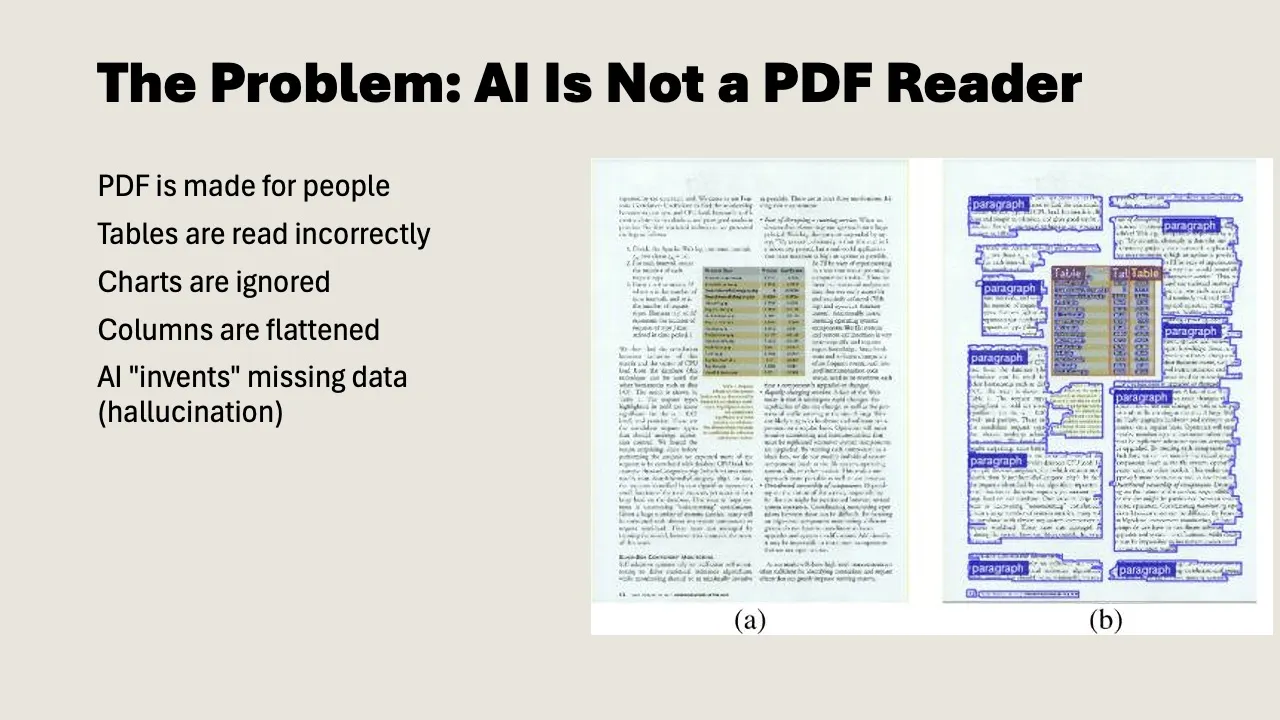
A lot of teams paste pages straight into Copilot or ChatGPT and then wonder why the answer is messy. The input is messy. A language model doesn’t distinguish between “the article” and “the button in the navigation” unless you draw that line for it.
This is part of context management: the content you give AI shapes the answer as much as the question you ask. Clean input, better result.
The same reason you convert PDFs to plain text before handing them to AI applies to webpages. It takes ten seconds. It saves you an unusable answer.